Using My Server's Built-In GPU for Jellyfin and Immich
Part 3 of the Home Server series (3 so far).
- 1.Starting Over on My Home Server
- 2.Deploying My Home Server with Komodo
- 3.Using My Server's Built-In GPU for Jellyfin and Immich (this post)
In the last post, I mentioned that Jellyfin and Immich use the graphics hardware inside my server’s processor. That sentence skips the interesting part. My Docker containers run inside a Debian virtual machine on Proxmox, while the graphics hardware belongs to the physical server. I had to get the device across both boundaries before either app could use it. And yes, I know that by using Linux Containers (LXC) I could have avoided the VM and easily share the GPU. I will explain my reasons against that in this post.
Why these apps need a GPU
When a Jellyfin client can play a file as it is, the server sends the original file and does very little work. Jellyfin calls that Direct Play. But a Fire TV stick might not understand the video’s codec, the way it was compressed. A remote connection might also be too slow for its bitrate, the amount of data the video needs each second. If Jellyfin has to convert the video, it decodes the original and encodes a new stream while someone is watching. That is transcoding, a bit like translating a conversation in real time: read one format, produce another, and keep up with the speaker.
The Intel Core i5-14500 in this server has a UHD 770 GPU built into the processor. That makes it an integrated GPU, or iGPU, rather than a separate card. Its media engine has dedicated hardware for video decoding and encoding, which Intel calls Quick Sync Video. The CPU can do the conversion in software, but handing supported video work to that hardware leaves the CPU with much less to do. It also means I do not need a separate graphics card just to make a video playable on a tablet.
Immich has two different reasons to use the same GPU. Its server can use Quick Sync to convert videos for playback. Its machine learning container can use OpenVINO, Intel’s toolkit for running machine learning models, to run Smart Search and face recognition on the GPU’s compute side. Quick Sync is the video tool here, not the thing that recognizes faces. The names matter because a working video transcode does not prove that photo search is using the GPU.
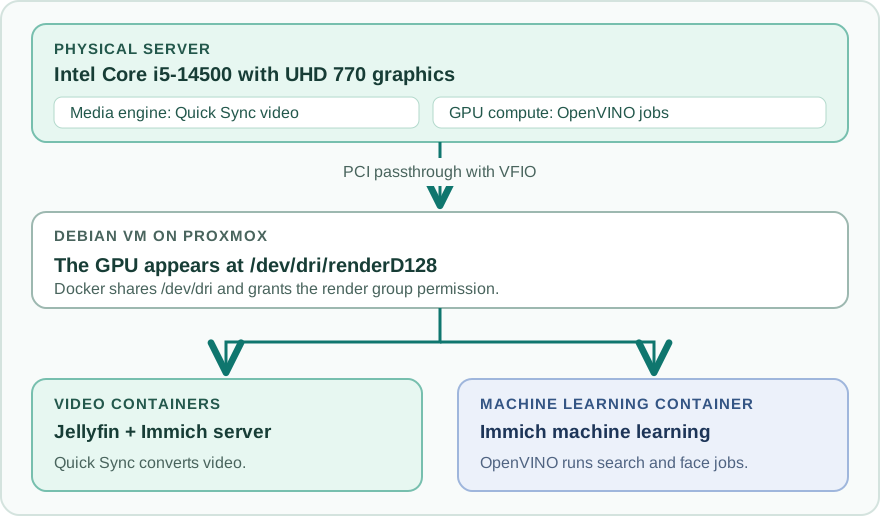
Getting the GPU from Proxmox into Debian
Proxmox runs directly on the physical server.
It runs my Debian virtual machine, which in turn runs Docker and the apps.
The first goal was to make the UHD 770 appear inside Debian.
Until that worked, adding /dev/dri to a Compose file would be like giving Jellyfin directions to a room that did not exist.
I considered running the GPU apps in a separate LXC instead. But that would have meant additional complexity: a second network, a second set of mounts, and a second Komodo stack to manage. Putting all my GPU-using apps in the same Debian VM was simpler in so many regards.
I gave the whole GPU to that VM through PCI passthrough. That means the Proxmox host stops using the device and the VM gets direct access to it.
Before changing the VM, I checked two things on the Proxmox host: whether the machine could isolate a device for passthrough, and which device was actually the GPU. The BIOS already had VT-d enabled, which is Intel’s switch for that isolation. These commands confirmed that the host saw it and found the GPU:
sudo dmesg | grep -e DMAR -e IOMMU
lspci -nn | grep -i vga
The first command showed that the IOMMU was active.
An IOMMU keeps a device handed to a VM from reading arbitrary host memory.
The second command identified my GPU at PCI address 00:02.0, with device ID [8086:4680].
The address says where it is; the ID says what it is.
Those numbers matter in the next commands, but they will differ on another machine.
I also checked the GPU’s IOMMU group, the set of devices the host can safely hand over together.
Mine was alone in group 0, so I was not about to give the VM a network or storage controller along with it.
ls /sys/kernel/iommu_groups/0/devices/
lspci -nnk -d 8086:4680
The directory contained only 0000:00:02.0.
The lspci output had no Kernel driver in use: line for the GPU, which made it look free.
I tried handing it to the VM, but it was not quite free.
The simple display system used during boot, called the firmware framebuffer, still had a hold on it even though the usual Intel graphics driver, i915, had not started.
My first reboot taught me that a blank driver line does not mean nobody owns the screen.
I also tried a softdep i915 pre: vfio-pci rule to load the passthrough driver before i915.
That rule only runs when i915 loads, and on this host it never did.
There went another reboot.
The working setup needed to release the boot display and load the passthrough driver directly.
The goal was to make Proxmox leave the GPU alone and let the vfio-pci driver reserve it for the VM.
On the Proxmox host, I kept the existing single line in /etc/kernel/cmdline and added these flags:
intel_iommu=on iommu=pt initcall_blacklist=sysfb_initThe first two keep the IOMMU enabled and set its passthrough mode.
The last one was the fix for this machine: it stops the early framebuffer from claiming the GPU.
The device ID also went into /etc/modprobe.d/vfio.conf so vfio-pci would claim this specific GPU, while /etc/modprobe.d/blacklist-gpu.conf kept the host’s Intel graphics drivers away:
# /etc/modprobe.d/vfio.conf
options vfio-pci ids=8086:4680 disable_vga=1

# /etc/modprobe.d/blacklist-gpu.conf
blacklist i915
blacklist xe
Because the softdep rule never ran, I listed the VFIO modules explicitly in /etc/modules:
vfio
vfio_iommu_type1
vfio_pci
After changing the boot line and modules, I rebuilt the boot files and restarted the host:
sudo update-initramfs -u -k all
sudo proxmox-boot-tool refresh
sudo reboot
Over SSH, lspci -nnk -d 8086:4680 now reported Kernel driver in use: vfio-pci.
That was the host-side result I needed before attaching the GPU to the VM.
In Proxmox, I opened the Debian VM, chose Hardware → Add → PCI Device, and selected 0000:00:02.0.
I left Primary GPU unchecked so the VM kept its normal browser console.
Finally, I checked from inside Debian rather than assuming the Proxmox setting had worked:
ls -l /dev/dri
sudo apt install vainfo intel-gpu-tools
vainfo
/dev/dri/renderD128 was present, and vainfo listed the UHD 770’s video capabilities.
At this point the VM could use the GPU, but Docker still needed its own device mapping and permissions.
The physical monitor on the host went dark after boot because its GPU now belonged to the VM.
SSH, the Proxmox web UI, and the VM’s separate browser console still worked.
Seeing the monitor go black was finally good news, although it took me a moment to appreciate it.
Giving the containers access
Docker normally hides host devices from a container. The Jellyfin Compose file opens the last two doors like this:
services:
  jellyfin:
    devices:
      - /dev/dri:/dev/dri
    group_add:
      - '992'
The device mapping makes the VM’s GPU files visible inside Jellyfin.
The group entry grants access to renderD128, the file applications use for GPU work.
992 is the numeric ID of the render group inside this Debian VM.
It is not a magic Intel number, and copying it from this post into another machine is a good way to get a permission error.
I got it with stat -c '%g' /dev/dri/renderD128 in the VM.
I then enabled Intel Quick Sync in Jellyfin’s playback settings and forced a video to transcode.
Jellyfin reported Transcoding (hw), while intel_gpu_top inside the VM showed Video engine activity and the CPU stayed near idle.
That combination is stronger evidence than a container starting successfully or a GPU appearing in ls /dev/dri.
If the CPU were busy and the Video engine idle, I would check the FFmpeg log and the render group before calling the setup done.
Immich’s immich-server has the same device mapping for Quick Sync video conversion.
Its separate immich-machine-learning container uses an OpenVINO image and the GPU for Smart Search and face recognition.
The test for that second path is different: run a search or face detection job and look for activity on the GPU’s Render or Compute engine.
One physical chip is doing two kinds of work, but they are different paths through it.
The useful outcome is that Jellyfin can convert a video without tying up the general-purpose CPU, and Immich is wired to use the same chip for video and image tasks. When a client can Direct Play, I still want it to do that. The fastest transcode is the one the server never has to start.
What comes next
This GPU setup made the services faster, but it does not answer the question that started this rebuild: what happens when a disk dies or the whole server stops working? Next I want to show how I back up the VM and the data it depends on. I also want to explain why DNS lives outside this VM.